Optimiza Tu Router para Streaming IPTV
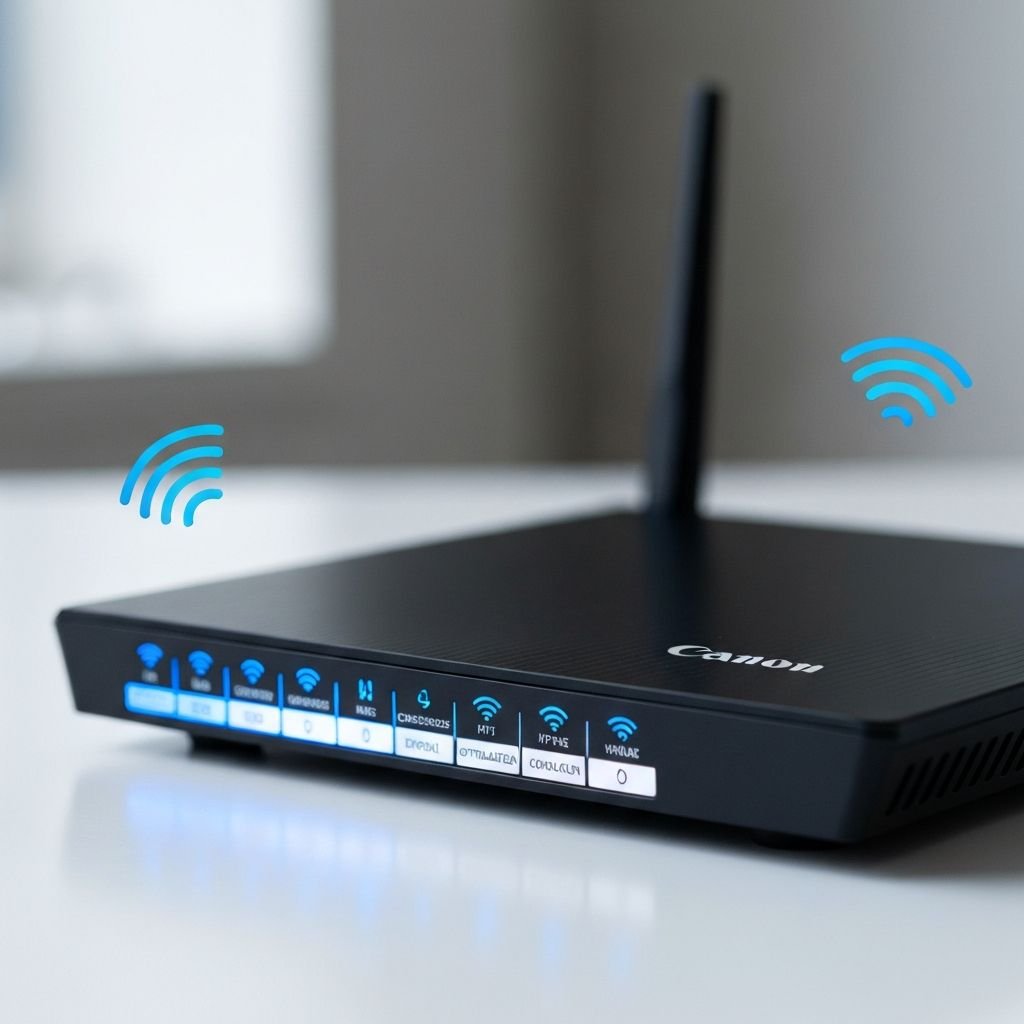
Tu router es la puerta de enlace entre tu servicio IPTV y tus dispositivos. La configuración adecuada del router puede mejorar dramáticamente la calidad del streaming y eliminar el buffering. Esta guía te lleva a través de las configuraciones esenciales del router para optimizar tu experiencia IPTV.
Why Router Configuration Matters
Most routers come with default settings optimized for general internet browsing, not streaming. IPTV requires consistent, high-bandwidth connections with minimal packet loss. By adjusting specific router settings, you can prioritize IPTV traffic and ensure smooth, uninterrupted streaming.
Before You Start
Make sure you have your router's admin credentials. These are usually found on a sticker on the router itself or in the manual. Common default addresses are 192.168.1.1 or 192.168.0.1.
Step 1: Access Your Router Settings
- Open a web browser on a device connected to your network
- Type your router's IP address in the address bar (usually 192.168.1.1 or 192.168.0.1)
- Enter your admin username and password
- You should now see your router's admin dashboard
Step 2: Enable Quality of Service (QoS)
QoS is the most important setting for IPTV streaming. It prioritizes IPTV traffic over other internet activities, ensuring your streams get the bandwidth they need.
How to Enable QoS:
- Navigate to the QoS or Traffic Management section in your router settings
- Enable QoS (toggle switch or checkbox)
- Set priority rules:
- Highest Priority: IPTV streaming (ports 1935, 8080, UDP)
- Medium Priority: Web browsing, email
- Low Priority: Downloads, file transfers
- Some routers allow device-specific QoS. Add your streaming device's MAC address to the high-priority list
- Save settings and reboot the router
Step 3: Set Up Port Forwarding
Port forwarding directs internet traffic to specific devices on your network, reducing latency and improving connection stability.
Common IPTV Ports:
- Port 1935 (RTMP)
- Port 8080 (HTTP)
- Port 554 (RTSP)
- UDP Ports 1234-1235
Note: Check with your IPTV provider for specific port requirements
Step 4: Optimize WiFi Settings
If you're using WiFi for IPTV (though Ethernet is recommended), optimize these settings:
- Use 5GHz Band: Less congested than 2.4GHz with higher speeds. Ideal for IPTV streaming if your device supports it.
- Change WiFi Channel: Use WiFi analyzer apps to find the least congested channel. Channels 1, 6, and 11 are best for 2.4GHz; channels 36, 40, 44, 48 for 5GHz.
- Enable Beamforming: Focuses WiFi signal toward your devices for stronger connection.
- Set Channel Width: Use 40MHz or 80MHz for 5GHz band for better performance.
Step 5: Update Router Firmware
Outdated firmware can cause performance issues. Check for updates regularly:
- In router settings, find the "Firmware Update" or "Router Update" section
- Check for available updates
- Download and install updates (this usually takes 5-10 minutes)
- Router will reboot automatically
Step 6: Disable Unnecessary Features
Some router features can interfere with IPTV streaming. Consider disabling:
- SIP ALG (Application Layer Gateway)
- WMM (WiFi Multimedia) - unless specifically needed
- UPnP (if not using gaming consoles)
Step 7: Configure DNS Settings
Using faster DNS servers can reduce loading times and improve overall performance. Replace your ISP's default DNS with:
Recommended DNS Servers:
Google DNS:
Primary: 8.8.8.8 | Secondary: 8.8.4.4
Cloudflare DNS:
Primary: 1.1.1.1 | Secondary: 1.0.0.1
OpenDNS:
Primary: 208.67.222.222 | Secondary: 208.67.220.220
Step 8: Limit Connected Devices
Too many devices on your network can cause congestion. During peak IPTV viewing times, consider:
- Disconnecting devices you're not actively using
- Pausing large downloads or uploads
- Setting up a guest network for visitors to separate traffic
Step 9: Enable IGMP Snooping
IGMP (Internet Group Management Protocol) Snooping optimizes multicast traffic, which many IPTV services use. Enable this in your router's advanced settings under "Multicast" or "IGMP" section.
Step 10: Consider Router Placement
Physical router placement affects WiFi performance:
- Place router in a central location
- Elevate the router (on a shelf, not on the floor)
- Keep away from metal objects and thick walls
- Avoid proximity to microwaves and cordless phones